
29 May 2025
Introducing the Action Register: An Efficient Way to Track Actions in Incident Insight

Tracking and managing the effectiveness of barriers in process safety is important. Without a structured system, barriers become diminished and consequently ineffective. It’s also common for critical tasks to be held up when time and resources are strained. With hazardous projects, there needs to be clear oversight to understand the importance of process safety management to mitigate avoidable incidents. That’s why we designed the Action Register for Salus Suite products. This feature helps teams effectively manage barriers and stay on top of tasks within incident investigations, improving efficiency, accountability, and overall risk management.
What is Action Register
Action Register is a tool in Salus Suite that enables users to create and assign actions. It includes priority levels and a final due date option, allowing users to highlight tasks of importance, ensuring nothing gets overlooked. At its core, this feature promotes accountability within teams and organisations, helping to develop strong barrier management systems.
But why did we build it? We noticed that while many teams were identifying actions during reviews or investigations, there was often no consistent way to track whether those actions were actually completed. We wanted to change that. The Action Register was developed to bring structure, visibility, and accountability across all diagrams or stand-alone actions. It’s not just about tracking tasks, it’s about creating a culture of follow-through, where actions don’t just get assigned but actually get done.
Who is it for?
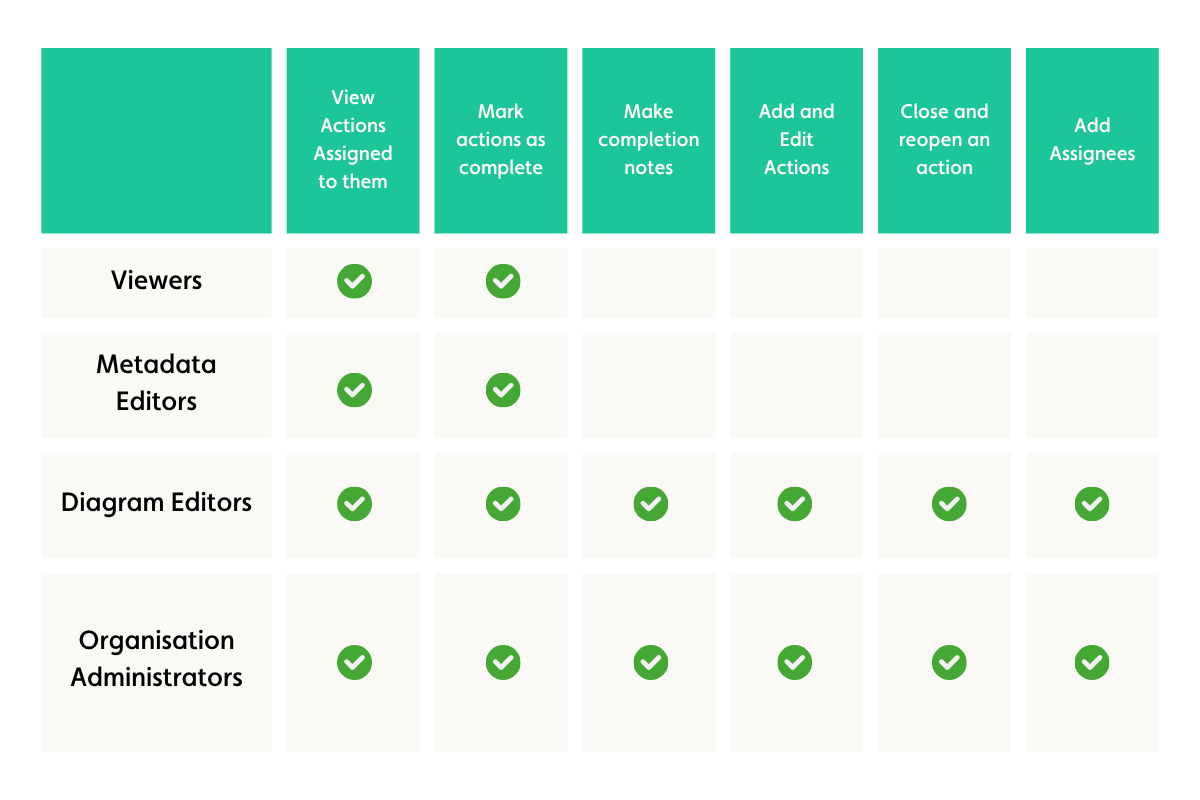
We designed the Action Register with all user levels in mind, promoting engagement and accountability across the board. While every Salus Suite user may access the feature, permissions vary per role.
Once an action is created, only Organisation Administrators, the Action Owner (either the Organisation Admins or a Diagram Editor), or Diagram Editors with granted access can edit its contents.
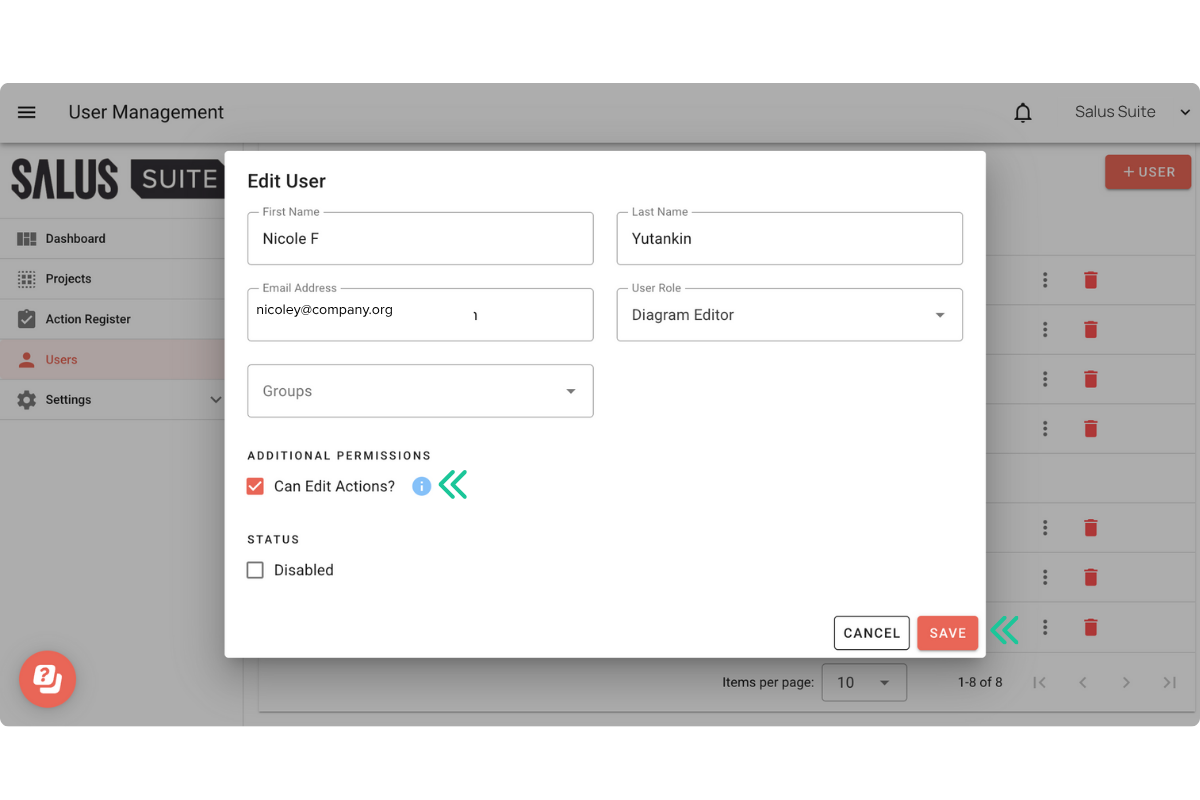
To edit the access of a user in the Salus Suite app:
- In the User Menu, click on a User you wish to edit access for.
- In the pop-up, tick/untick the Can Edit Actions option.
- Click Save.
Benefits of Action Register
We designed the Action Register around real-world workflows, and its benefits go beyond just tracking tasks. Here are a few ways it helps users:
- Keeps everything in one place
Actions are centralised and easy to find through the Action Register Menu, reducing the risk of missed deadlines and forgotten tasks.
- Improves visibility across the team
Team members can see who’s responsible for what, avoiding duplication and ensuring nothing slips through the cracks. Organisation Admins can also get a clear overview of which actions need priority.
- Enhances barrier management process
Actions can be linked to incident investigation diagrams, so teams can quickly see what needs attention and how it links back to risk controls.
How to Use the Action Register in Salus Suite
The Action Register is designed to work the way you do, whether you’re assigning follow-ups after a review or checking off completed tasks. With it, you can create new actions, assign them to team members, and track progress all in one place. In this blog, we’ll show you how you can create an action and assign it to team members. If you’re looking for a step-by-step tutorial, we’ve got you covered with a detailed how-to guide.
Creating an Action through the Action Register Menu
- In the Action Register Menu, click on the + Action button in the upper right corner.
- A new window will appear. Enter the necessary information, such as the Title of your action, Details, and Due Date. You can also assign a priority level.
- Once you are satisfied with the details, click Save.
Assigning Actions
Assigning actions to one or multiple users (even users whose role is viewers or metadata editors) is possible.
- In the action we just created, click + Add Assignee.
- In the pop-up, toggle the Assignees and select the User/s you wish to assign the action to.
- Click Assign. New assignees will be notified immediately. This is what an email notification looks like:
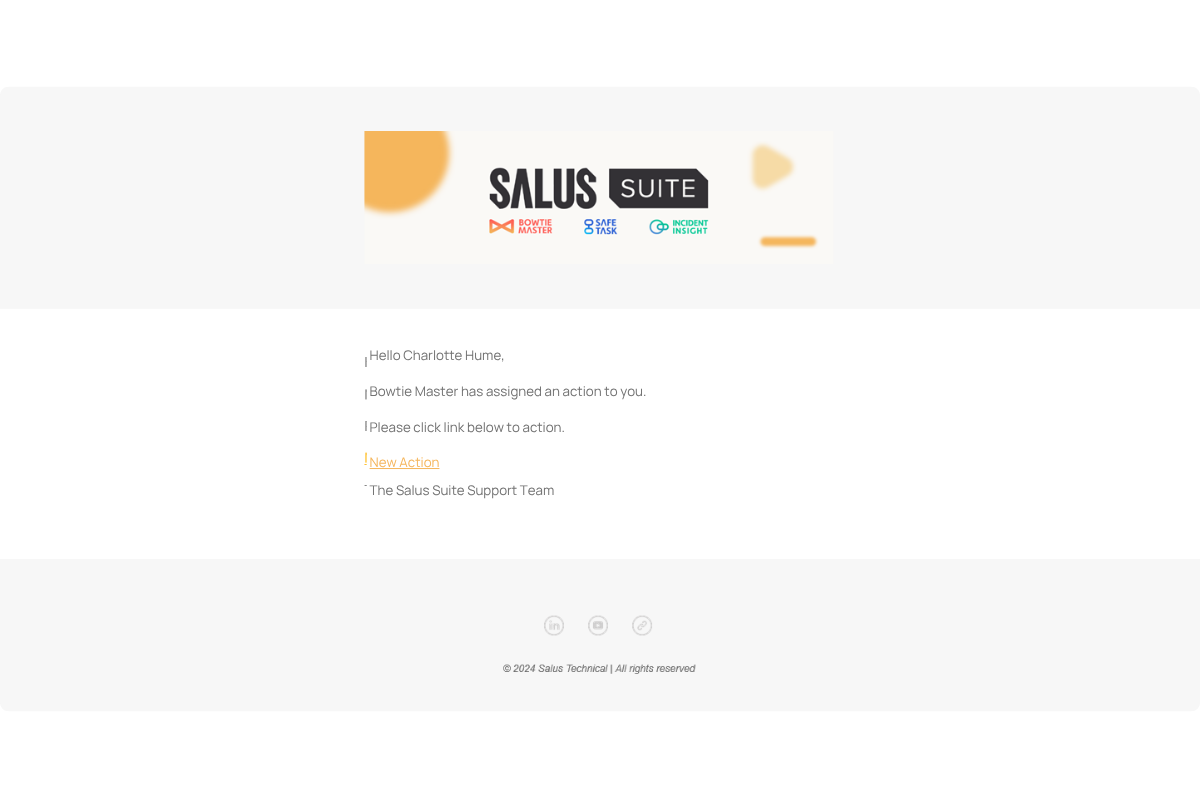
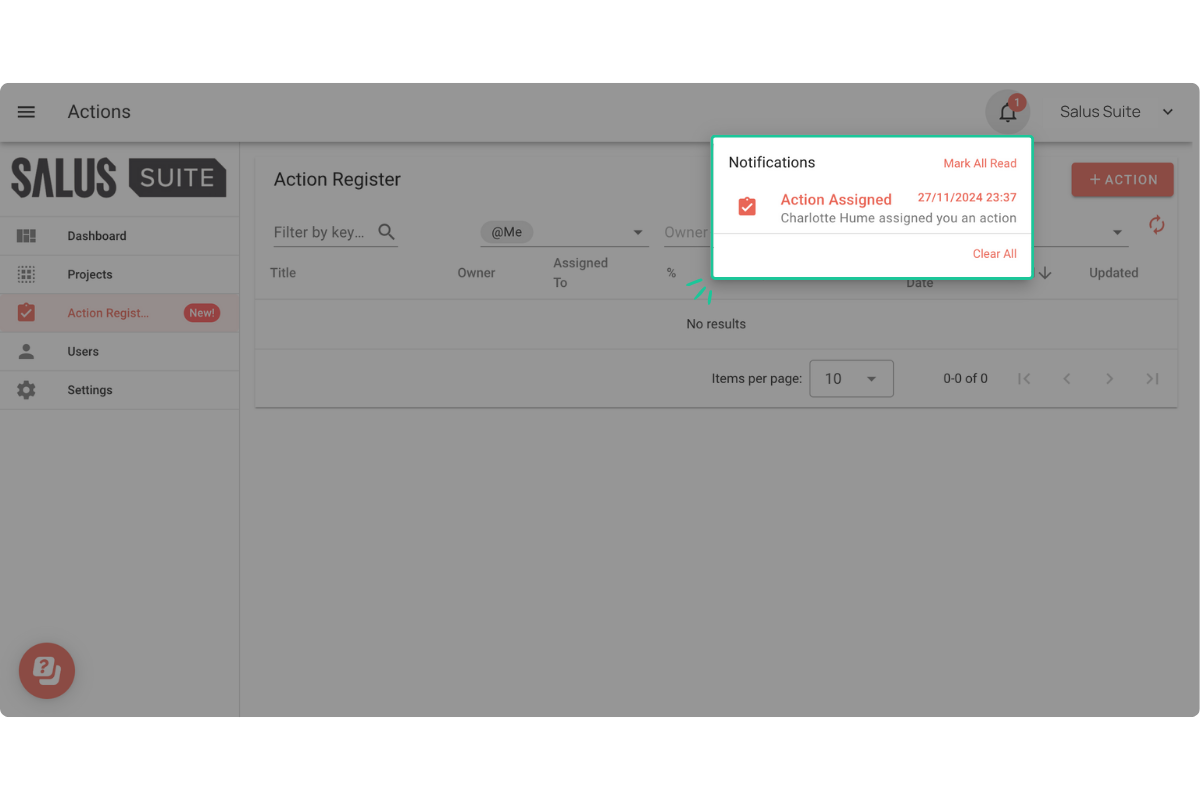
To access in-app notifications, click on the Notification Bell beside your Profile Name. New Notifications will be shown there.
Best Practices for Utilising the Action Register
To make the most out of the Action Register feature, we have rounded up some tips for you.
- Prioritise actions to focus on critical tasks. The Action Register feature includes a priority level with four options to choose from: low, medium, high, and critical. Setting priorities makes it easier to manage actions. In the Action Register Menu, you can sort actions according to priority level for better visibility.
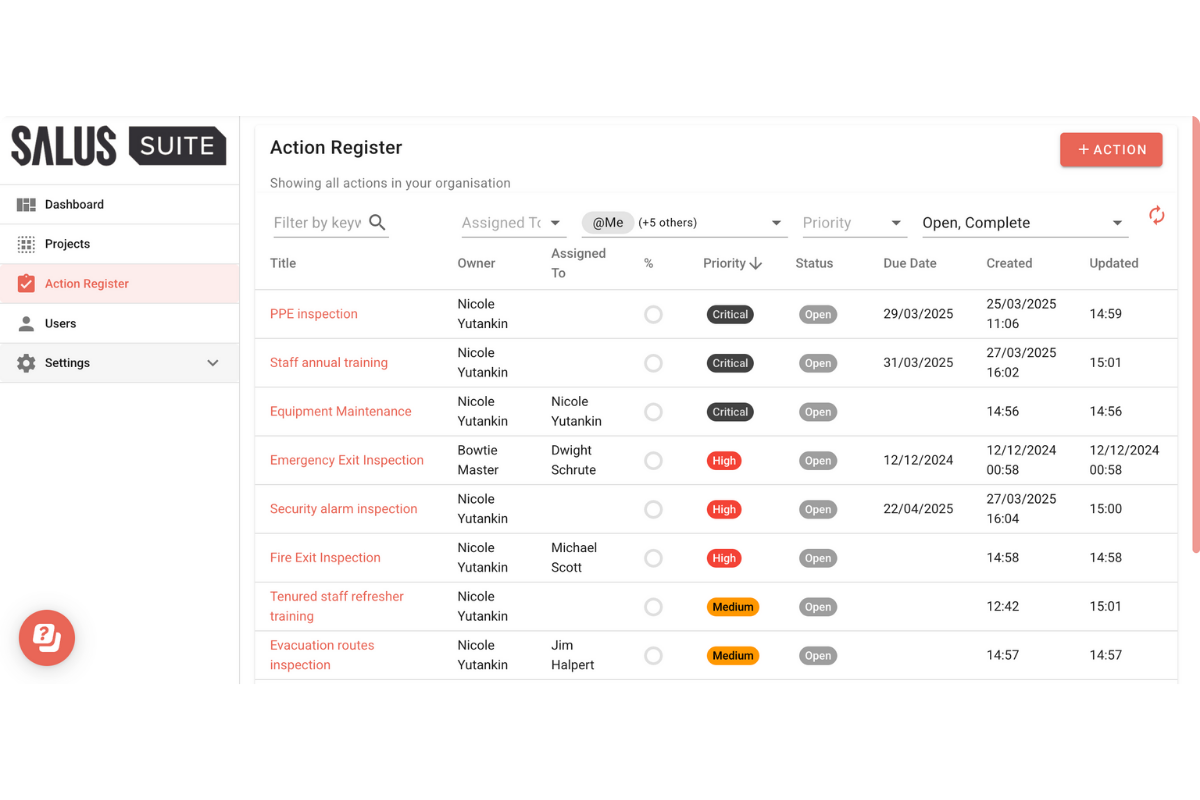
- Regularly track and update progress made. If you’re working with a team, keeping your actions updated ensures smooth collaboration. Ensure to regularly monitor actions so new notes/updates are accounted for across your team. Use the progress (%) slider bar to track your progress or mark an action complete once it’s done.
- Take advantage of the assign option. Don’t carry out all the tasks and actions by yourself! Assign actions to other users in your team to distribute tasks efficiently.
Conclusion
The Action Register feature is built for all incident investigation diagram users, making it easy to track, manage, and complete actions, all while keeping the process organised and intuitive. See how your team can integrate this feature into your workflow. For a more in-depth tutorial, book a quick call with us. We’d be happy to guide you through it!